# Livestreaming Settings
## Livestreaming Settings
## Checking The Current Bandwidth On Your Device
**When you are facing issues when hosting, watching the webinar session or doing networkingin EventX event, one of the possible reasons might be due to bandwidth or network instability. To verify the root cause, you can check the following:**
Browser: Using the latest version of Google Chrome, Firefox, MS Edge, or Safari
Internet speed:
**Signal Strength Indicator for networking tools**
When joining the *Networking lounge tables, Booth lounge tables, 1 on 1 video calls* and *Speed networking*you will notice a network signal indicator on the upper left corner.
Signal strength has 4 levels (Weak, Fair, Good, Excellent). When you hover on the icon, it will show how strong your signal is.

**How to increase bandwidth?**
* **Internet plan**
* Getting higher Mbps plan has better performance while streaming video with lots of content.
* Recommended bandwidth on hosting or attending a live webinar session
* Participating in a live session requires fast connection and strong processing power for optimal streaming speeds. In addition to having a stable connection, we recommend the following bandwidths for hosts, speakers and attendees;
| | | |
| -------------------- | ------------------ | -------------------- |
| | **Minimum Upload** | **Minimum Download** |
| **Hosts & Speakers** | 30 Mbps | 10-12 Mbps |
| **Attendees** | 10 Mbps | 10-12 Mbps |
* **For Organizers**
* Here are the recommendations for your devices:
* **Browser:** Latest version of Google Chrome, Firefox, MS Edge, or Safari
* \*\*Operating system:\*\*Windows 7+, Mac OS X 10.7+, or Ubuntu 10+
* **Network:** Internet connection with 5+ Mbps
* Closing other tabs, browsers, and/or programs during live sessions may maintain the streaming stability.
* **Router**
* Limit the number of devices connected to the network and moving your device closer to the router could improve your internet connection. If possible, try to reboot router to strengthen internet signal and connection.
* **Wired**
* If WiFi connection does not help improve bandwidth, suggest to connect your device with a wired network. It helps prevent bandwidth and connection issues from other devices.
## Checking Browser Settings Before Joining An Event
When joining an event make sure to use the supported browsers
1. Safari
2. Chrome
3. Firefox
4. Microsoft Edge
### **Joining an event via Safari**
* Please **toggle off** “Prevent Cross-Site Tracking”
#### On iPhone
\*\*Step 1:\*\*Go to your phone settings and choose Safari.\
\
\*\*Step 2:\*\*Toggle off "Prevent Cross-Site Tracking"\

#### On Macbook
\*\*Step 1:\*\*Go to **Safari** on the menu tab and choose **Preferences**.\
\*\*Step 2:\*\*Unclick **Prevent cross-site tracking** in the pop-up window.\\
|  |  |
| -------------------------------- | -------------------------------- |
### Joining an event via Chrome - Mobile
#### On iPhone
**Step 1:** Go to phone settings and select Chrome.\
\
\*\*Step 2:\*\*Toggle off "Prevent Cross-Site Tracking"\

#### On Android
1. Using **normal mode** in Chrome browser on Android devices can join the event without changing any default settings.
2. Using Chrome **incognito mode** in Android, need to **turn off** "Block third-party cookies" to join the event.\

### Joining an event via Firefox
1. Using **normal mode** in Firefox browser on Mac and Windows can join the event without changing any default settings.
2. Using Firefox **new private window** in Mac and Windows will need to **toggle off**“Enhanced Tracking Protection” to join the event.
**Step 1:** Go to the highlighted icon next to the link.
\*\*Step 2:\*\***Toggle off** “Allow Cross-Website Tracking”

### Joining an event via Microsoft Edge
1. Both using **normal mode** and **New in Private window** in Microsoft Edge browser on Windows can join the event without changing the settings.
## Recommend Mic & Camera Setting
**Helpful Tips:**
Before joining an event, we recommend testing your Mic and Webcam to check if it is working properly and configured correctly. To test your Mic visit: . To test your webcam visit:
### Camera
When you find your camera is not working, try to follow the checklist below:
1. If you are using built-in camera, check that your camera indicator light is on.
2. If you are using webcam, check if the light is on and set it as input method.
3. Check that your camera has nothing blocked (e.g. tape on the camera).
4. Check if you have granted access for the camera for livestream and networking in video.
5. Re-enter the event by refreshing the page and try joining the live session or networking table again.
### Microphone
If you find the microphone volume indicator has no response, try to follow the checklist below:
1. Check the mic is not muted. You may also test your audio in Audio & Camera Setup to check if it is working.\

2. Check if you have granted access for the microphone for livestream and networking in video call.

3. Re-enter the event by refreshing the page and try joining the live session or networking table again.
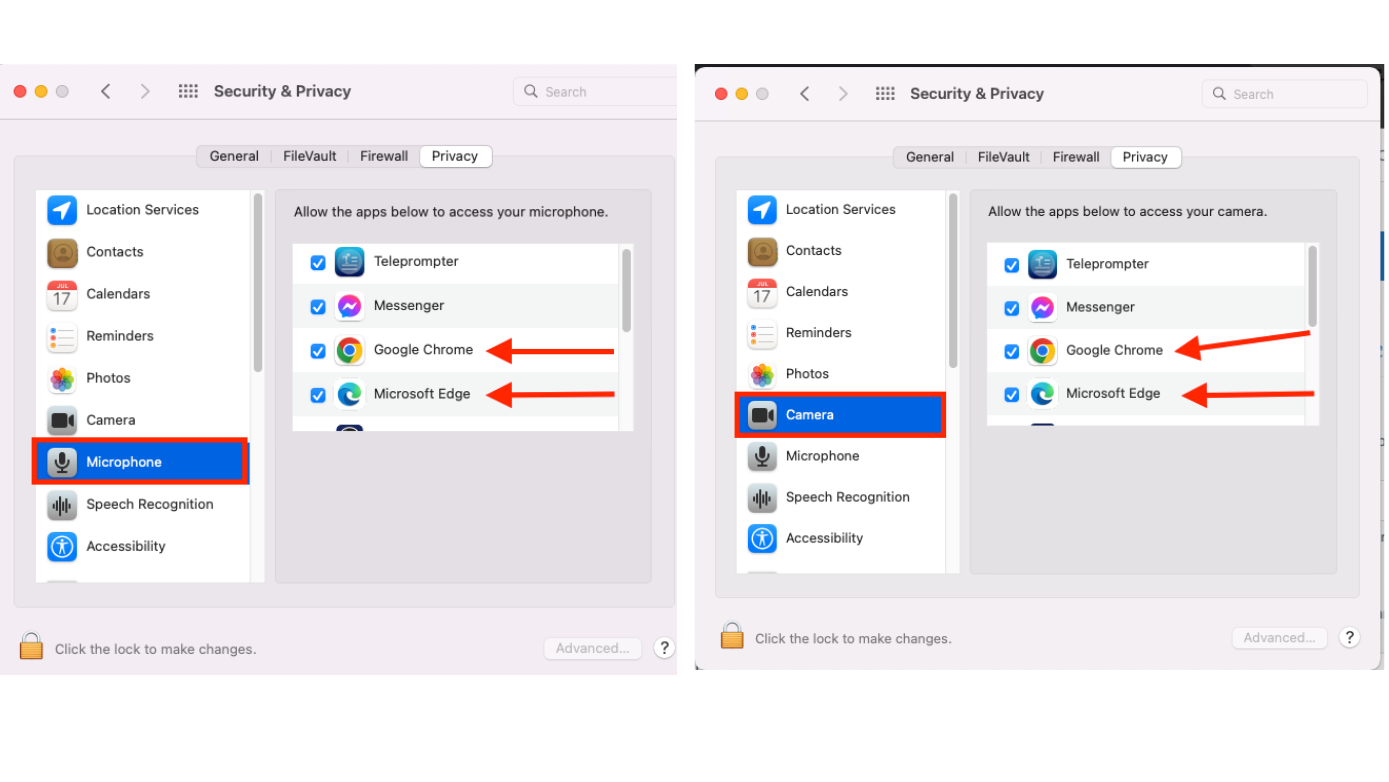
### **Security & Privacy Computer settings in Mac for *****Google Chrome, IE, Firefox***
When joining a webinar session using your webcam and mic make sure to check the following settings on your Laptop or PC using Mac OS.
1. Go to **System preferences** and then click **Security & Privacy**.
2. Under the Privacy tab you are able to check the *Camera* and *Microphone* settings.
3. Click the lock icon on the lower left to make changes to the privacy settings.
4. Make sure the browser you are using is checked to allow using the Mic and camera.
5. If changes has been made, click the lock icon to set the changes.
### **Security & Privacy Computer settings in Windows**
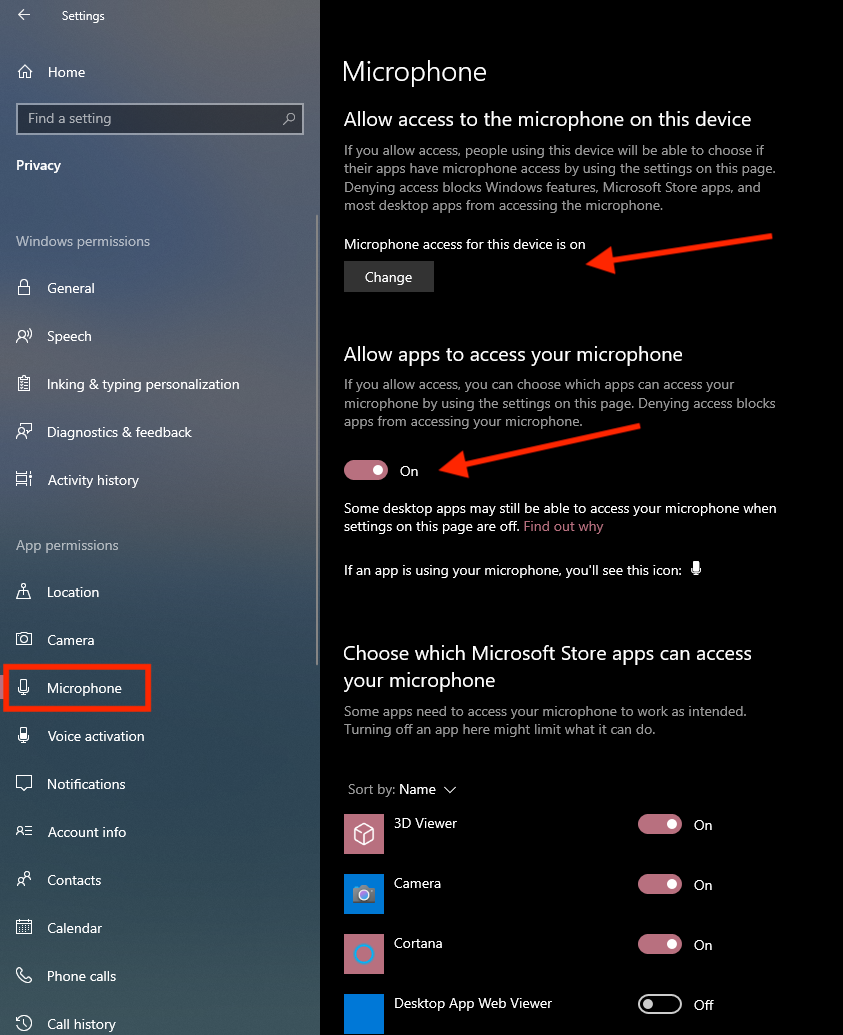
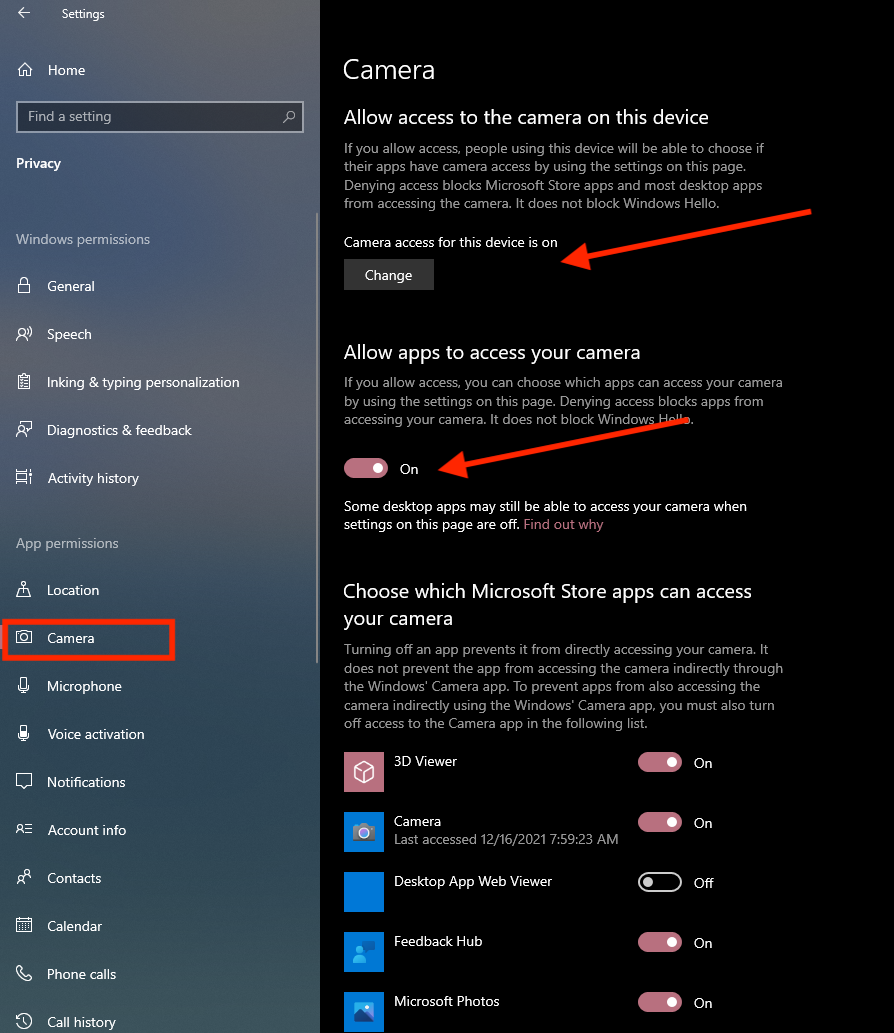
When using Windows Laptop/ Computer to join a webinar session. You may check Security & Privacy settings for Camera/Mic.
1. Go to **Start > Settings > Privacy > Camera/Microphone**
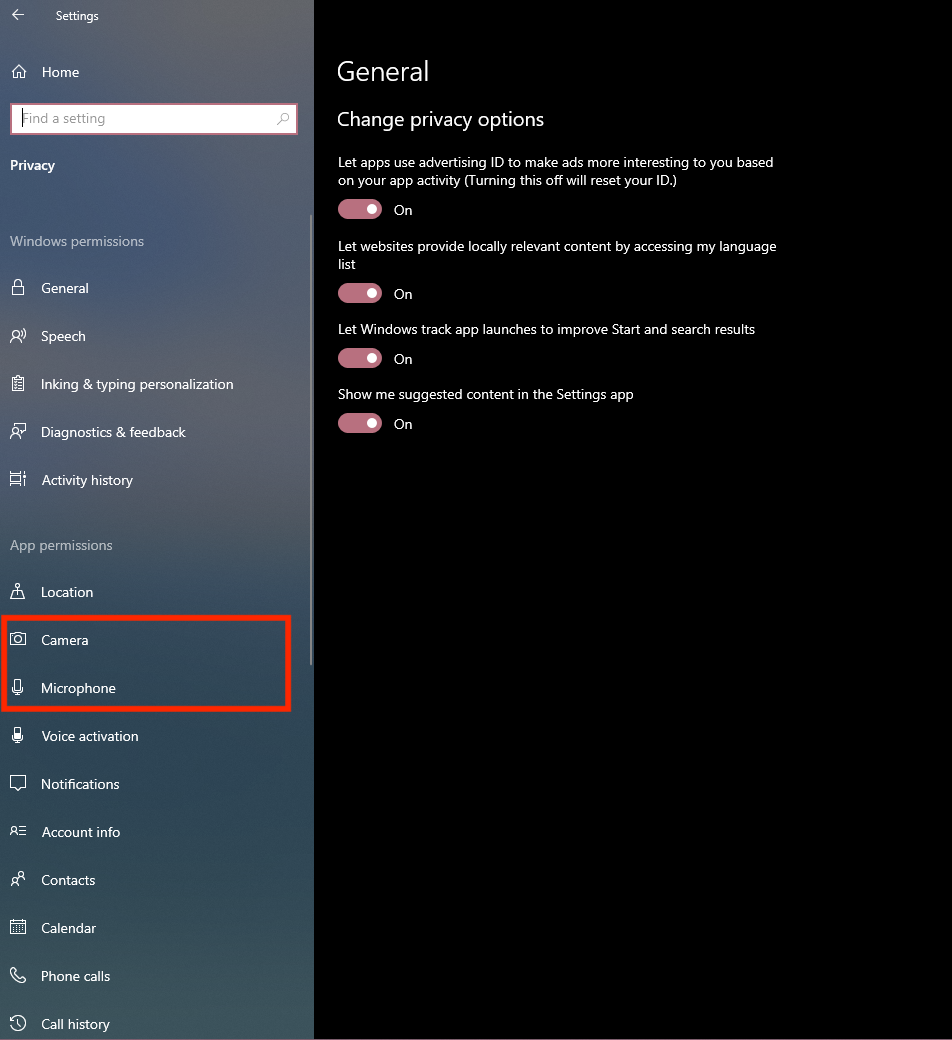
2. Make sure the camera/mic settings are turned ON
|  |  |
| --------------------------------------------------------------------------------------------------------------- | --------------------------------------------------------------------------------------------------------------- |
### **Camera/ Mic Settings using Google Chrome**
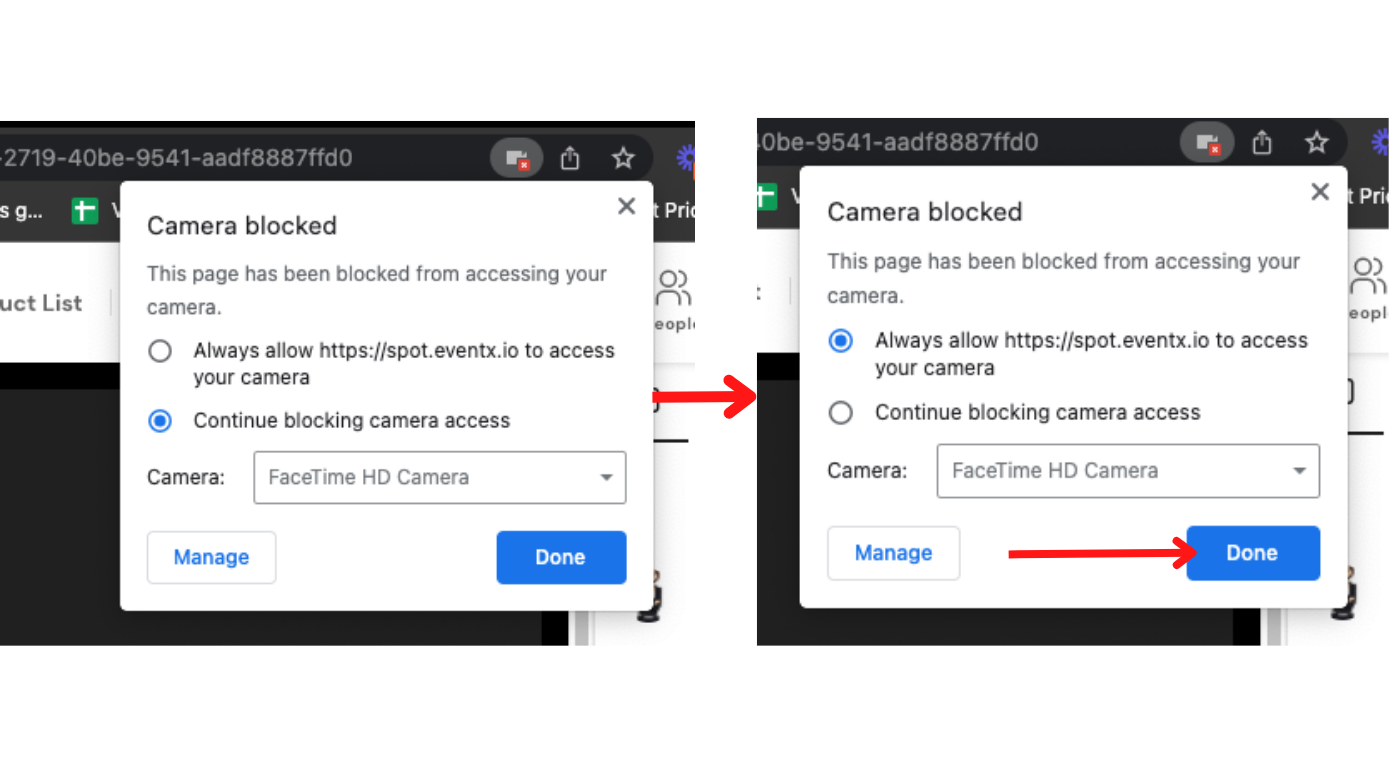
When joining a webinar session using a Camera & Mic on Google chrome, you need to take note of some points on the browser.
1. Make sure the camera and mic are not blocked. To check, find the small mic/camera icon at the end of the URL address line.
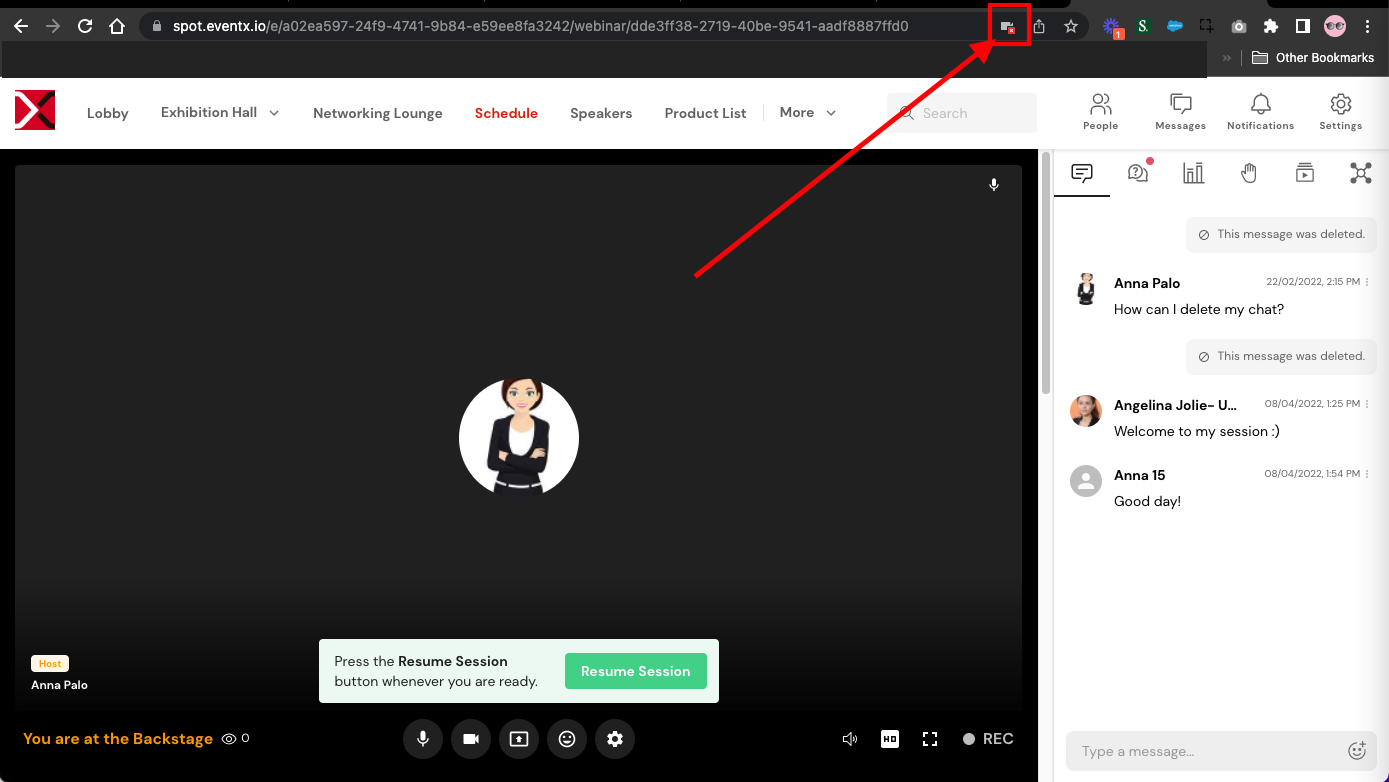
2. Clicking the icon allows you to block or unblock the mic/camera.
**Note:** In some cases, you would need to refresh the browser for new settings to take place.
### **Camera/ Mic Settings using Safari**
Upon entering a webinar session, a prompt will be shown giving you the option to change the camera/mic settings. Pick *Allow.*
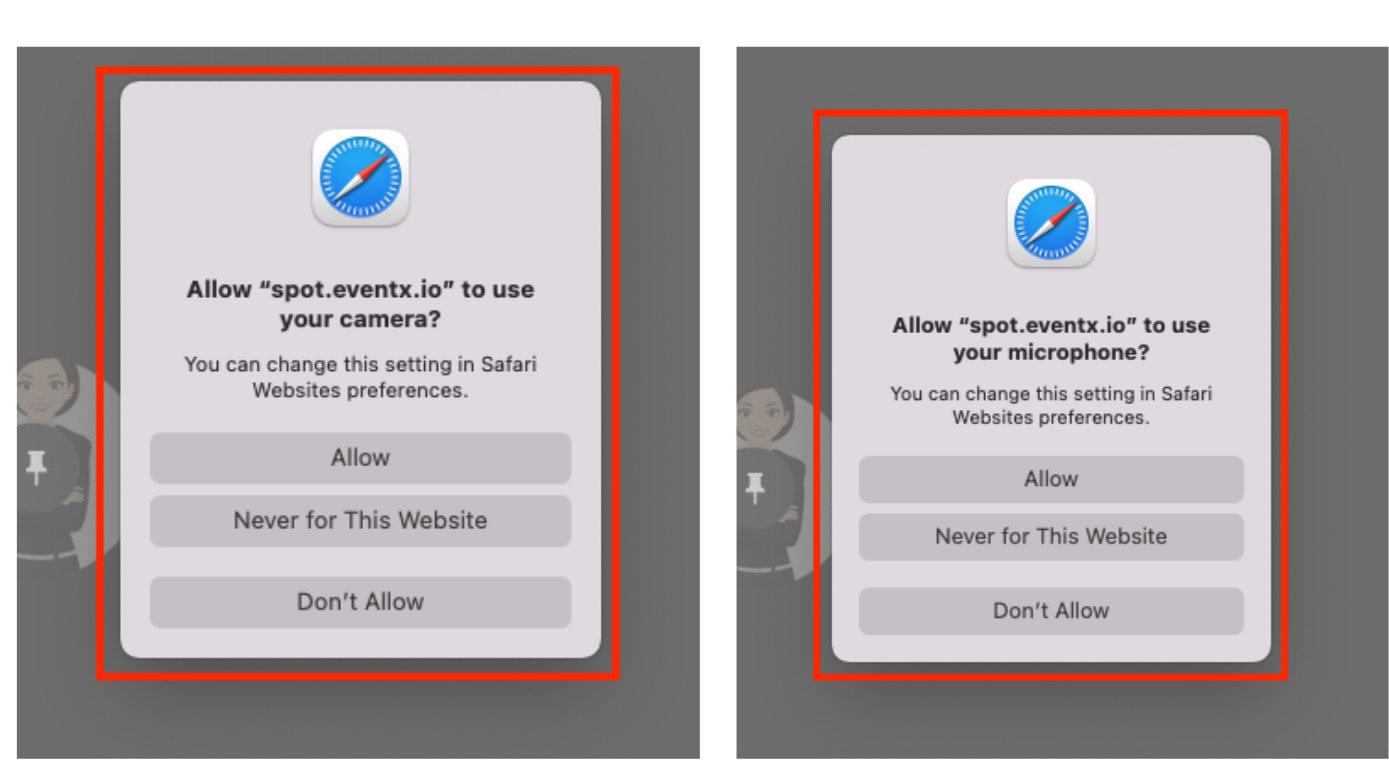
You will also see the status of the camera and mic at the end of the Safari address bar
|  |  |
| ----------------------------------------------------------------------------------------------------------------------------------------------------------- | ----------------------------------------------------------------------------------------------------------------------------------------------------------- |
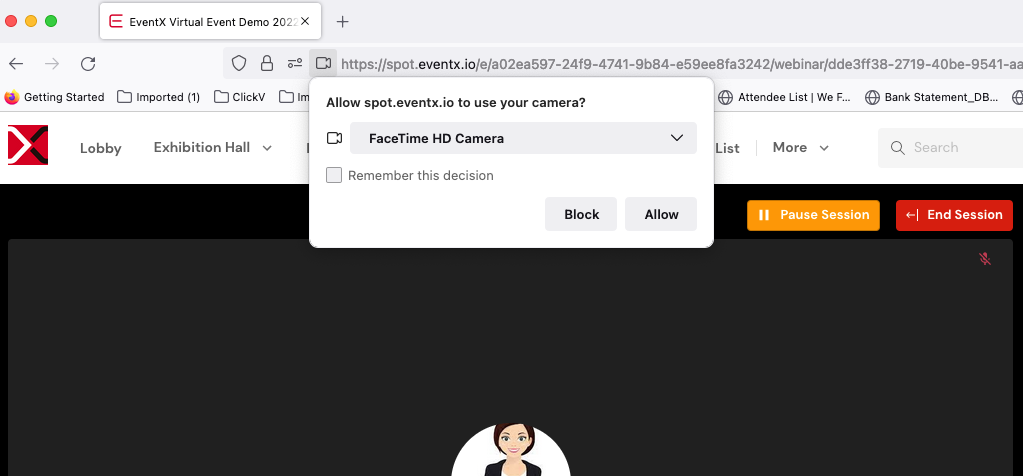
### **Camera/ Mic Settings using Firefox**
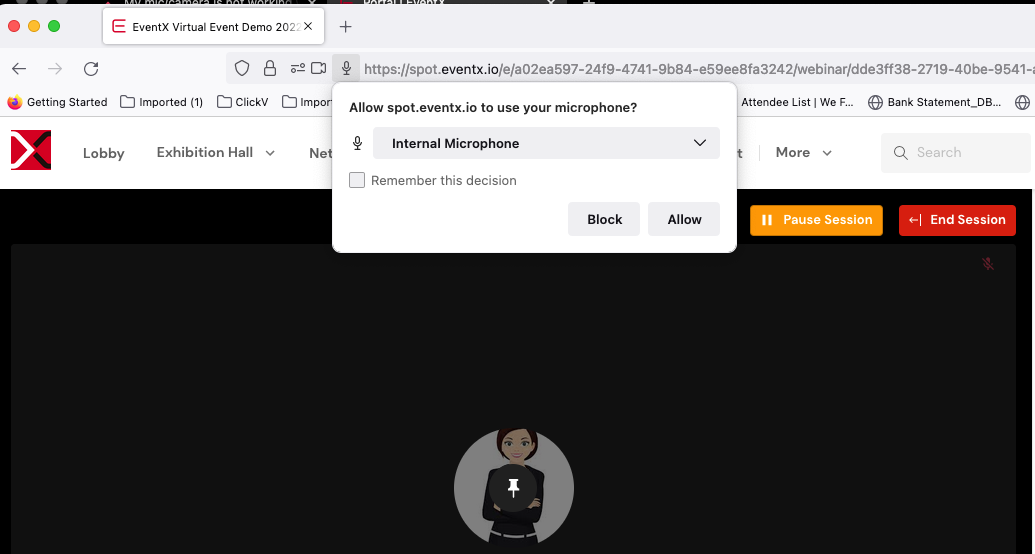
When joining the webinar sessions using Firefox browser, take note of the following settings on the browser.
Once you enter the webinar session, you will receive a prompt asking to Block or Allow Mic and Camera.
|  |  |
| --------------------------------------------------------------------------------------------------------------------------------------------------------- | --------------------------------------------------------------------------------------------------------------------------------------------------------- |
Once you have entered the webinar session, you may also see the status or mic/camera before the address bar.

### **Camera/ Mic Settings using Microsoft Edge (ME)**
In joining a webinar session via ME. Once you enter the webinar session, you will receive a prompt asking to Block or Allow Mic and Camera.
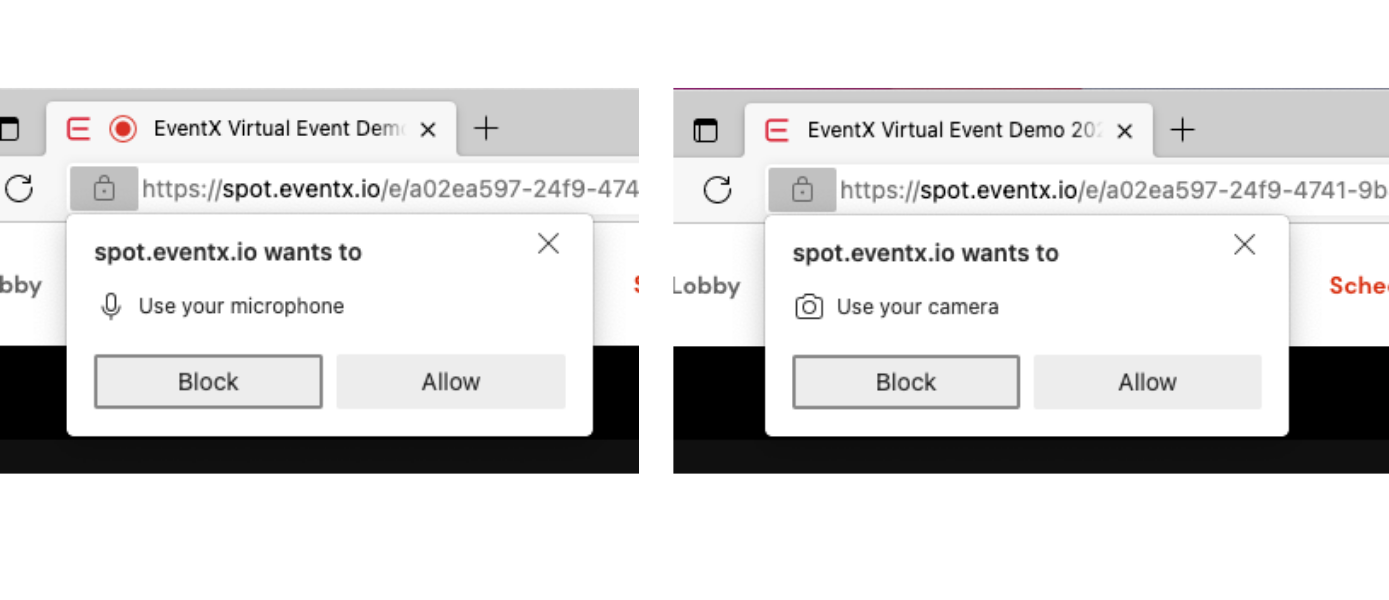
Once you have entered the webinar session, you will also see the status of Mic/Camera after the address bar.
 
---
# Agent Instructions: Querying This Documentation
If you need additional information that is not directly available in this page, you can query the documentation dynamically by asking a question.
Perform an HTTP GET request on the current page URL with the `ask` query parameter:
```
GET https://eventx-hq.gitbook.io/knowledge-base/livestream/setup-and-config/livestreaming-settings.md?ask=
```
The question should be specific, self-contained, and written in natural language.
The response will contain a direct answer to the question and relevant excerpts and sources from the documentation.
Use this mechanism when the answer is not explicitly present in the current page, you need clarification or additional context, or you want to retrieve related documentation sections.